CanOpener (Can Opener!)

for iPhone & iPad


Got files in obscure image formats? Likely we can read them as we support fifty-four different image file formats:

AVS, BMP, CUR, DIB, FITS, FTS, GIF, ICON, JNG, JP2, JPEC, JPEG, JPG, MAT, MIFF, MTV, MVG, PBM, PCX, PGM, PICT, PIX, PNG, PNG8, PNG24, PNG32, PNM, PPM, RLE, SGI, TGA, TIFF, TIF, TIM, VIFF, WBMP, WPG, SBM, XPM


Or some forms of: CALS, INLINE, MONO, OTB, PALM, PAM, PCD, PCDS, PFM, PICON, PTIF, RLA, SCT, SFW, SUN, VICAR, JPEG2000


1.6.9 now supports PRINTING and MAKE PDF (click for feature set)


Not only is Can Opener a document viewer for image documents or PDF files on your iOS device it also interfaces as a read-only user of Dropbox, and allows you to use iTunes to move files into or out of the App. As a document handler just check for the "Open In..." command in your Apps, via tap and hold on a document icon and choose "Can Opener".


*** PDF ***


If you are just interested in viewing PDF files you should look at our PDF product or LargeViewer they both contain specialized enhancements for dealing with ultra-fast viewing & rendering of PDF files, small or gigantic.


Now introducing LargeViewer Helper for iOS PreRendering, which does the  pre-rendering work on OS-X. Available thru the Mac OS-X App Store


http://itunes.apple.com/us/app/largeviewer-helper-for-ios/id422195945?mt=12&ls=1


Dropbox Storage:


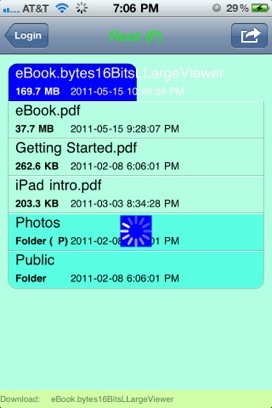
We are licensed to use the Dropbox developer api. We only read data from Dropbox, we never send data to Dropbox, delete files or touch your Dropbox directory structure.  When you use the Dropbox screen we present a file/folder view of your Dropbox directory, Dropbox gives us the file thumbnails. Tap to navigate the folder hierarchy, or tap to download a file. We show the file download progress as Dropbox gives us the contents of the file, once downloaded the file size will turn to blue to indicate we have a copy of the file on the iOS device for immediate access, or offline access.


After the file is downloaded we convert image based files to a format we can work with in the Hippo View.  This takes time, but you can put Can Opener in the background and let it work for a limited amount of time. Usually what will happen is that it will show at the bottom of the screen a blue bar with: "Hippo View", the name of the file and either "Estimating" when we are busy deciding how to process the file, or a file size like 1280x980  as we crunch the data. Different colours are used to show state, Green for thumbnails, Blue for Hippo View processing, and Yellow or Orange if the image is > 15 MegaPixels. 


In the Hippo View screen you can either choose to open the file with "Can Opener", or use another document handlers that might support the file. If Can Opener can open the file, the screen background will be green, white as it processes the file, yellow if we might be able to open the file, or red if there was a problem which might be repairable.


Local Storage:


You can copy documents into Can Opener by using iTunes to copy files into, delete, or copy them out of the app.  You can also if given the choice ask Can Opener  to open documents from other Apps, like email.  Can Opener  does not need to be running if you want to ask it to open documents from other apps.


You can also copy image files into the app by Saving to the Photo Library and doing an import or by doing “Copy” if the other app allows it so you can “Paste” into the app.


When Can Opener sees new local files to process it builds thumbnails, this activity shows as a green 'Thumbnails:' status bar with the file name and dimensions, once it completes building all the thumbnails  it will begin building "Hippo Views" of all the files.


The Hippo View.


Once you are at the Hippo View screen you can choose to either use Can Opener to look at the file, or use some other application to open the document via the far right toolbar button "Open With..."


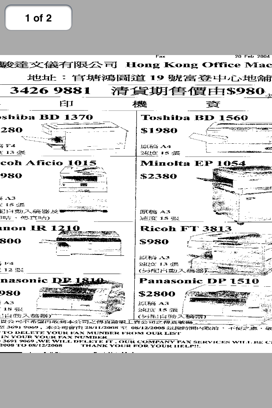
This viewer is also used to show multi-page TIFF files like the ones you get from a fax machine. However please note:


(a) If your Mail program shows a blue [?] icon instead of your Tiff file, sorry your Mail program decided to thrown the data away because it's too BIG or of the wrong type. Please check out Import Questions link for suggestions to get at that TIF file.


About * Support * Email


From this screen you can read this help text, but you can also tap 'App Review!' to give us a great review in the App Store, or tap 'Email support' to directly send our tech team email with diagnostics if supported by your iOS device.  We do not send any information from the contents of your files but in the email attachment we do send information that includes the names of the files, sizes and dates.  If you wish not to send this information just delete the file attachment from the email message when you complete the body of the email.


Repair


Oops stuff happens. We try hard to catch issues and on this screen you can tap to select problem documents to take repair actions. This might mean reprocessing the thumbnail or doing the "Hippo View" processing again if it did not complete. Sometimes we think the file is unreadable because of file transfer issues and might ask you to copy it onto the device again. Otherwise we ran out of free space or we just can't read the file!  Always ensure you have enough free space on the device when you want to process large numbers of documents.


Processing is slow?


Terminating other running apps helps a bit, if you have a need to process lots of image files please email us and we can talk further about other options we are pursuing to make the "Hippo View" process faster. Remember an iOS device isn't a desktop computer it has limited computational power.


Crashes?


Yes email us. This can happen if the document page size is too big, we run out of space, or we've a bug.  You may need to send us the problem document so our engineers can review it. A major problem is documents that are too large in dimensions, not length , but we've another App "LargeViewer" that can open 40 megapixel documents. 


Our LITE version only supports single page TIFF files, drops the Dropbox interface, and includes iAds, look for an in-app purchases to upgrade the feature set sometime in January 2011.


Can Opener is copyright 2010 Corporate Smalltalk Consulting Ltd. We are makers of LargeViewer an app for Hippopotamus sized images like blueprints, Fax Reader, PDF, WorldPulse, WikiServer, Parcours.robo and various fractions calculators, and we do custom iPhone/iPad work.


Warranty information:

http://www.apple.com/legal/itunes/appstore/dev/stdeula


Privacy information:

http://www.priv.gc.ca/information/guide_e.pdf